Steam Deck: Running Sega Master System Games
The Sega Master System was an iconic 8-bit console that stood toe-to-toe with the NES, offering a unique library of games. Titles such as Golden Axe, Double Dragon, and Streets of Rage were not only fan favorites but often featured exclusive or enhanced versions compared to their counterparts on other platforms. Even more impressively, games like Mortal Kombat and Asterix & Obelix pushed the system beyond its limits, delivering experiences closer to those found on 16-bit consoles like the Sega Genesis.
For modern retro gaming enthusiasts, playing Sega Master System titles is now easier than ever thanks to the Steam Deck and EmuDeck—a powerful emulator suite designed for handheld retro gaming performance. Here’s how you can install and optimize Sega Master System emulation on your Steam Deck for the best experience possible.
Before Installing EmuDeck
To ensure a smooth installation of EmuDeck for Sega Master System emulation, prepare your Steam Deck accordingly:
- Ensure your Steam Deck is either fully charged or connected to a power source during installation.
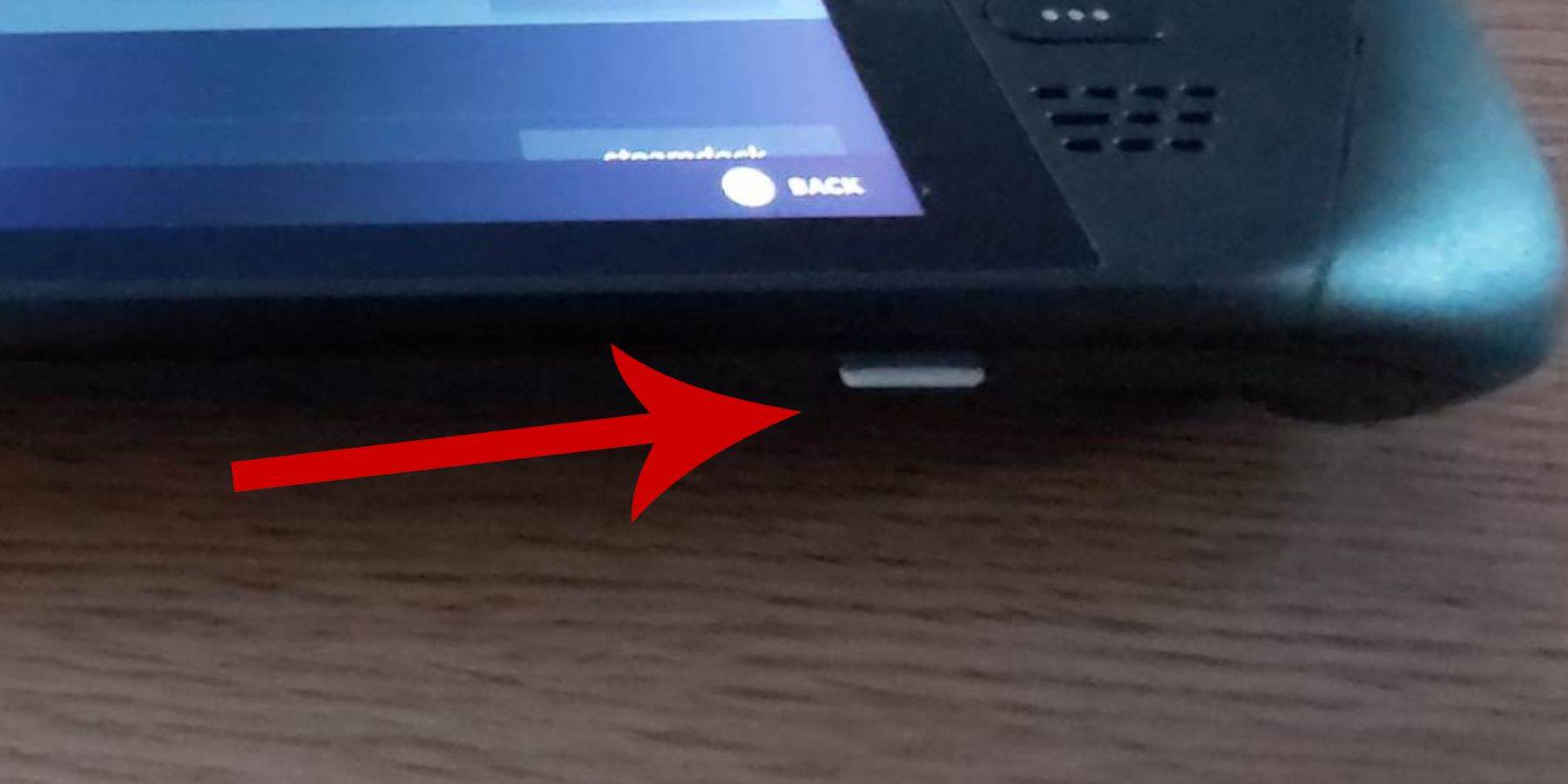
- Use a high-speed micro SD card inserted into the bottom slot of your Steam Deck and format it directly through the device for optimal compatibility.
- Alternatively, an external HDD may be used, although this will reduce portability.
- Using a keyboard and mouse will make file transfers and installations much smoother, though not mandatory.
- If a physical keyboard and mouse are unavailable, use the built-in on-screen keyboard by pressing the Steam + X buttons, and navigate using the trackpads.
Activate Developer Mode
Before installing any emulators, activate Developer Mode to allow full access to customization and advanced settings:
- Press the Steam button to open the left-side menu panel.
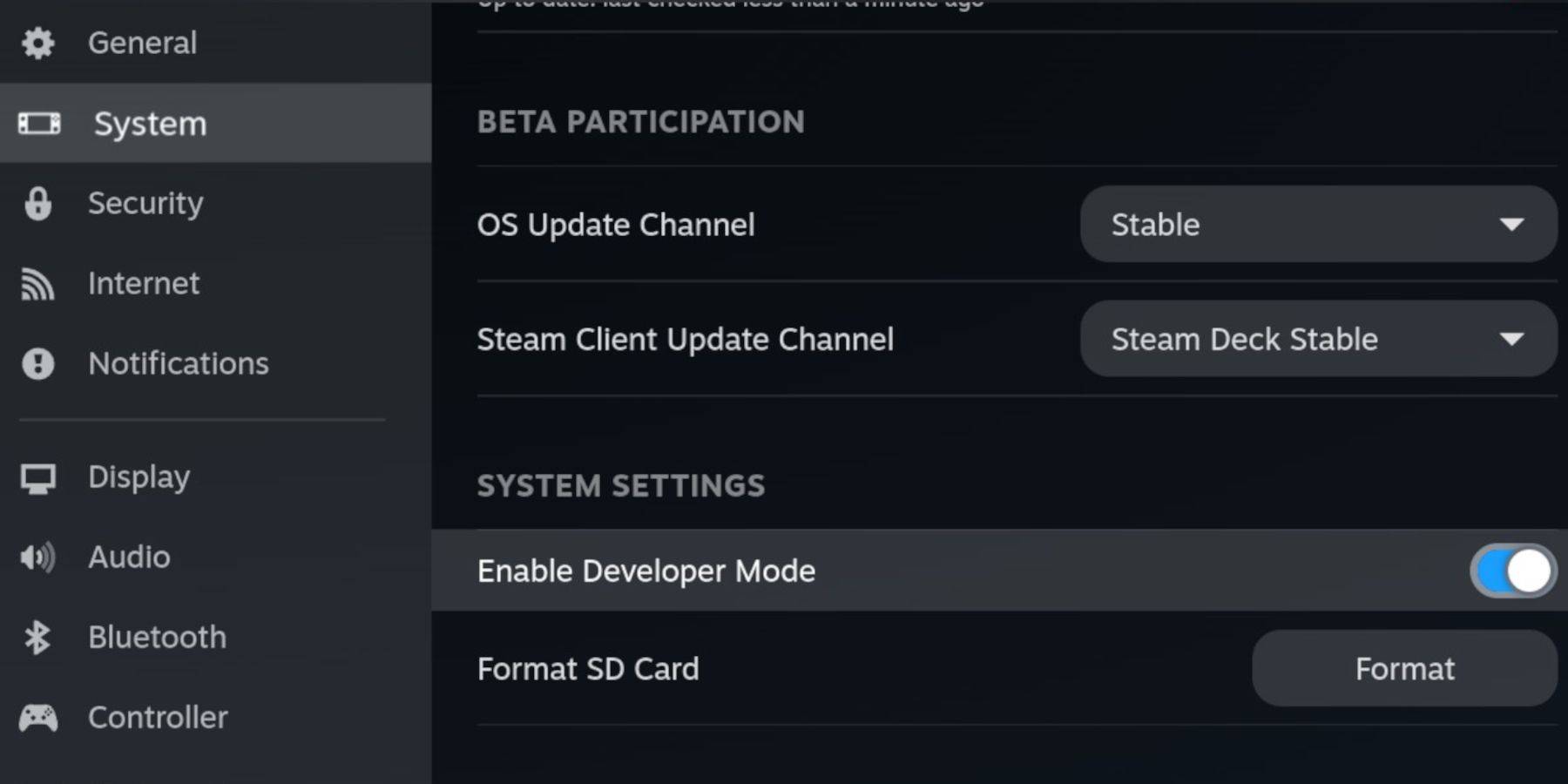
- Navigate to the System tab and select System Settings.
- Toggle on Enable Developer Mode.
- In the same menu, locate the Developer section at the bottom of the panel and open it.
- Enable CEF Remote Debugging under the Miscellaneous settings.
- Press the Steam button again, go to Power, and restart your Steam Deck.
Note: After each Steam Deck update, CEF Remote Debugging may become disabled. Always verify its status in the Developer Menu post-update to maintain plugin and emulator functionality.
Installing EmuDeck In Desktop Mode
- Press the Steam button beneath the left trackpad, select Power, and switch to Desktop Mode.
- Open a web browser—Chrome or Firefox works well—and search for “EmuDeck download.”
- Select the appropriate SteamOS version and begin the download.
- Once downloaded, double-click the installer and choose Recommended Install.
- Select Custom Install to tailor your setup.
- After installation, go to the EmuDeck menu and rename your SD card to "Primary" for easier identification within Dolphin File Manager.
- You can install all emulators or focus specifically on Sega Master System support via RetroArch.
RetroArch serves as a universal emulator frontend, allowing seamless access to multiple classic systems, including the Sega Master System, through the Steam library's 'Emulators' tab.
- Make sure to also install Steam Rom Manager alongside RetroArch so your games appear in the main Steam library.
- If you prefer a retro CRT aesthetic, enable the 'Configure CRT Shader for Classic 3D Games' option.
- Click Finish to complete the installation process.
Transferring Master System ROMs
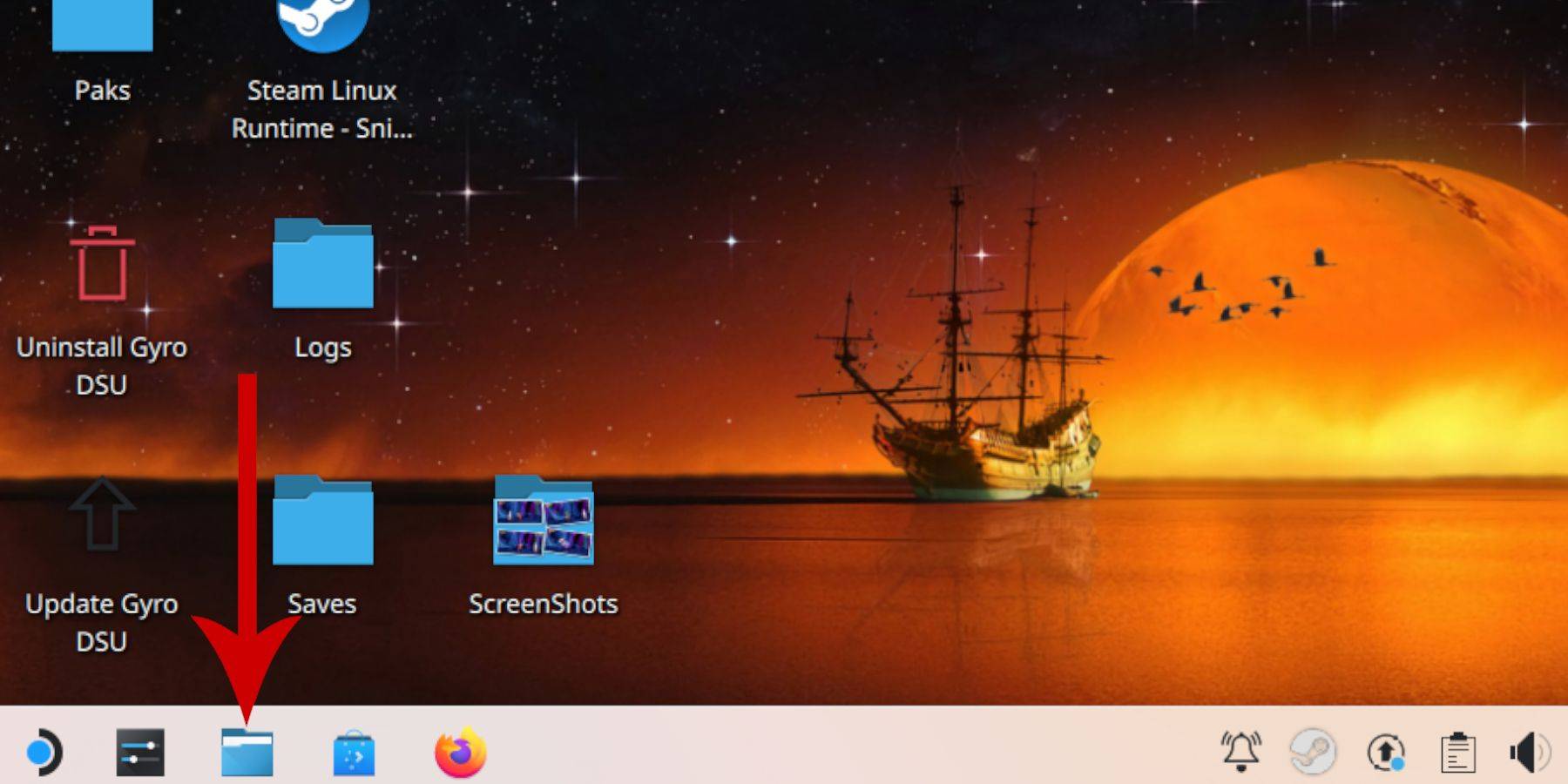
- Launch Dolphin File Manager.
- Under Removable Devices on the left sidebar, open the SD card labeled Primary.
- Navigate to the Emulation folder, then to ROMS.
- Locate the 'mastersystem' folder and copy your Sega Master System ROM files (.sms) into it.
- Ignore any file named 'media'—this is not required for gameplay.
Adding Master System Games To The Steam Library
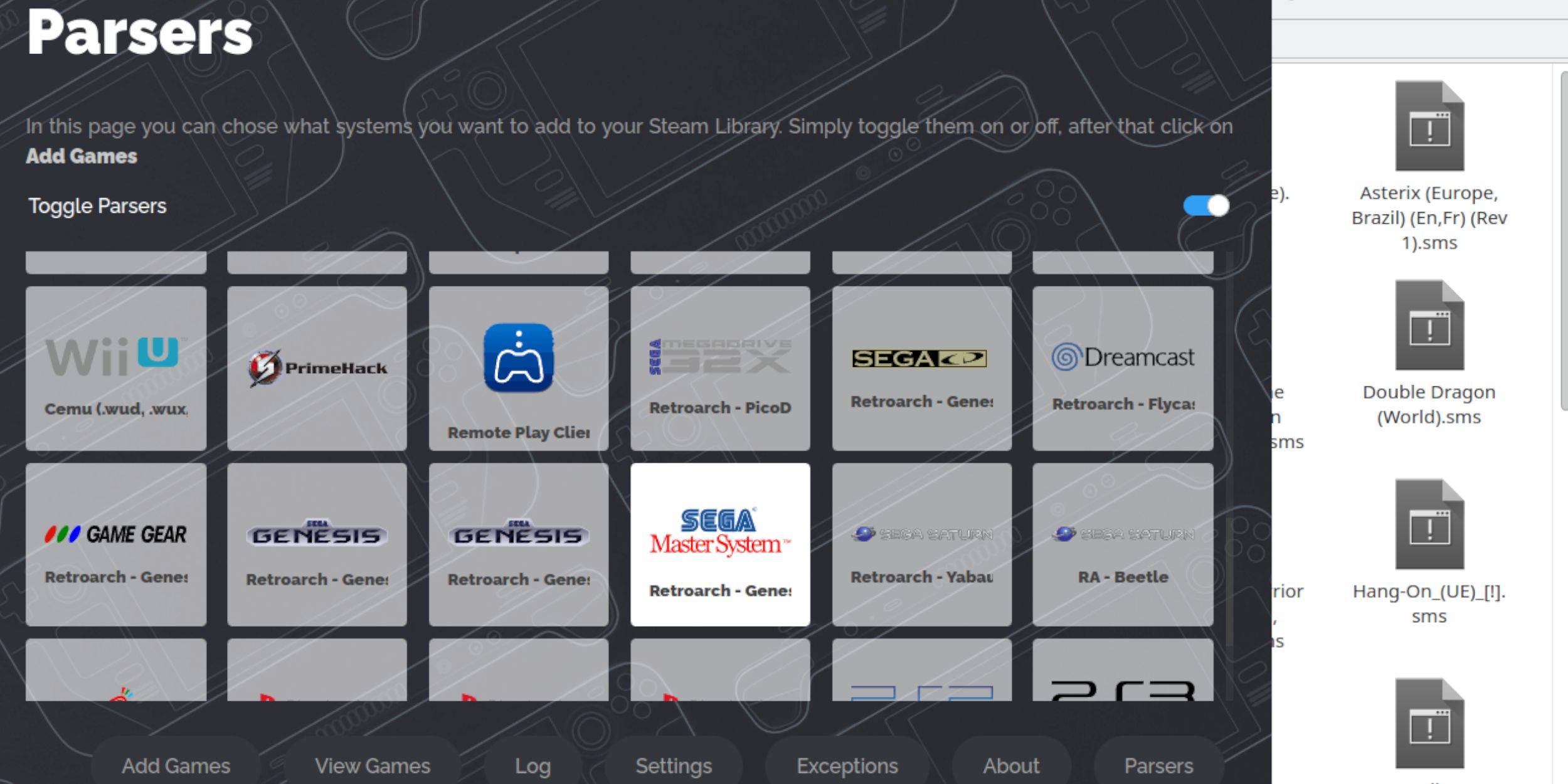
- Open EmuDeck in Desktop Mode and launch Steam Rom Manager.
- Click Next on the welcome screen.
- Disable Parsers if you already have game data ready.
- Select Sega Master System from the list and click Add Games > Parse.
- Verify that the games and cover art display correctly, then click Save to Steam.
Fix Or Upload Missing Artwork
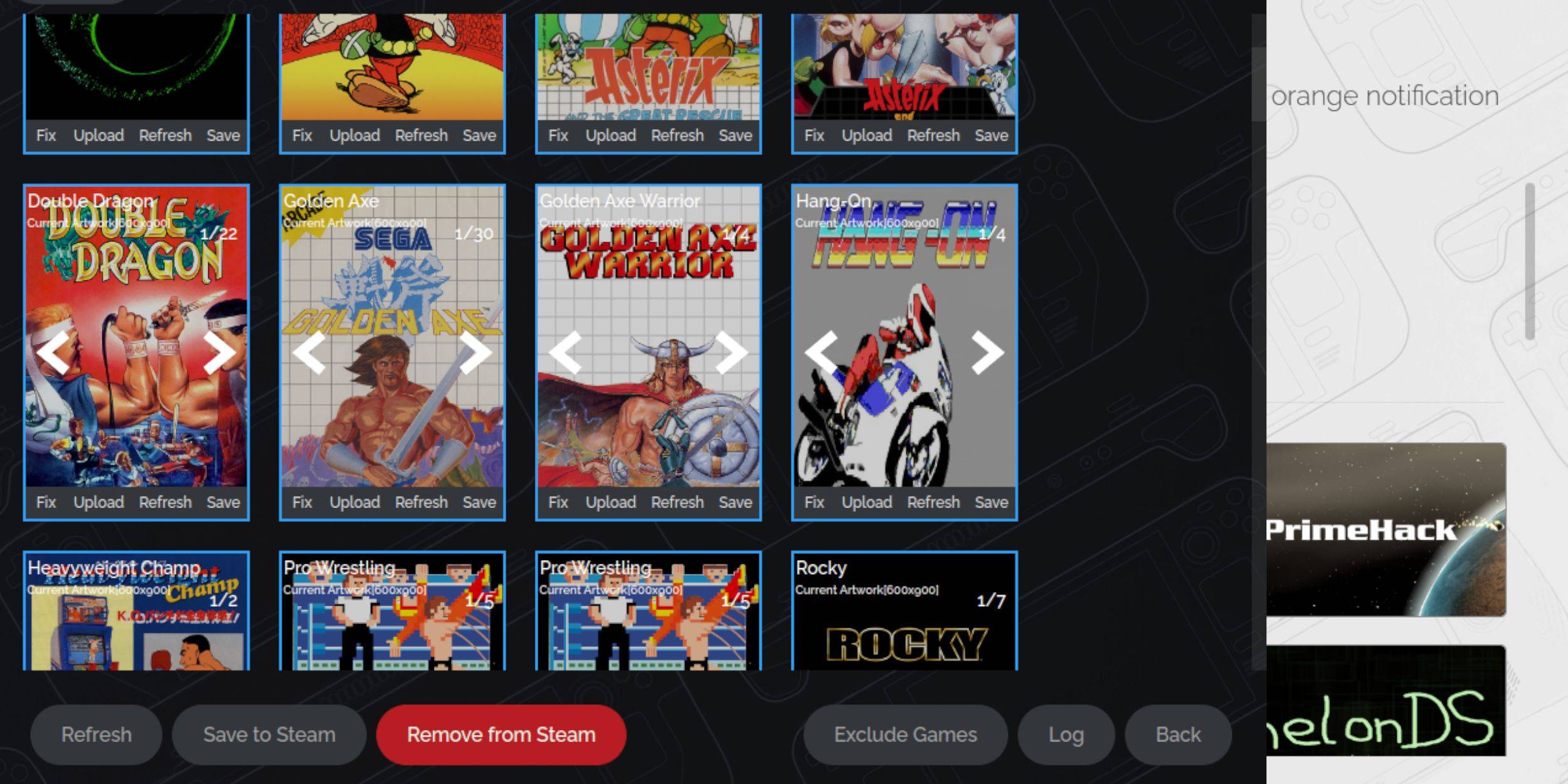
- Click Fix on the cover frame if artwork appears incorrect or missing.
- The Steam Rom Manager usually auto-detects correct cover art. If not, manually search for the game title.
- Select the most accurate cover image, then click Save and Close.
Upload Missing Artwork
- Open a browser and download the correct cover art image.
- Save the image to the Pictures folder on your Steam Deck.
- In Steam Rom Manager, click Upload on the cover frame.
- Browse the Pictures folder, select the image, and save it.
- If the image doesn't appear immediately, use the left/right arrows to cycle through available images.
- Click Save to Steam once confirmed.
- Once all batches are processed, return to Gaming Mode on your Steam Deck.
Playing Master System Games On The Steam Deck
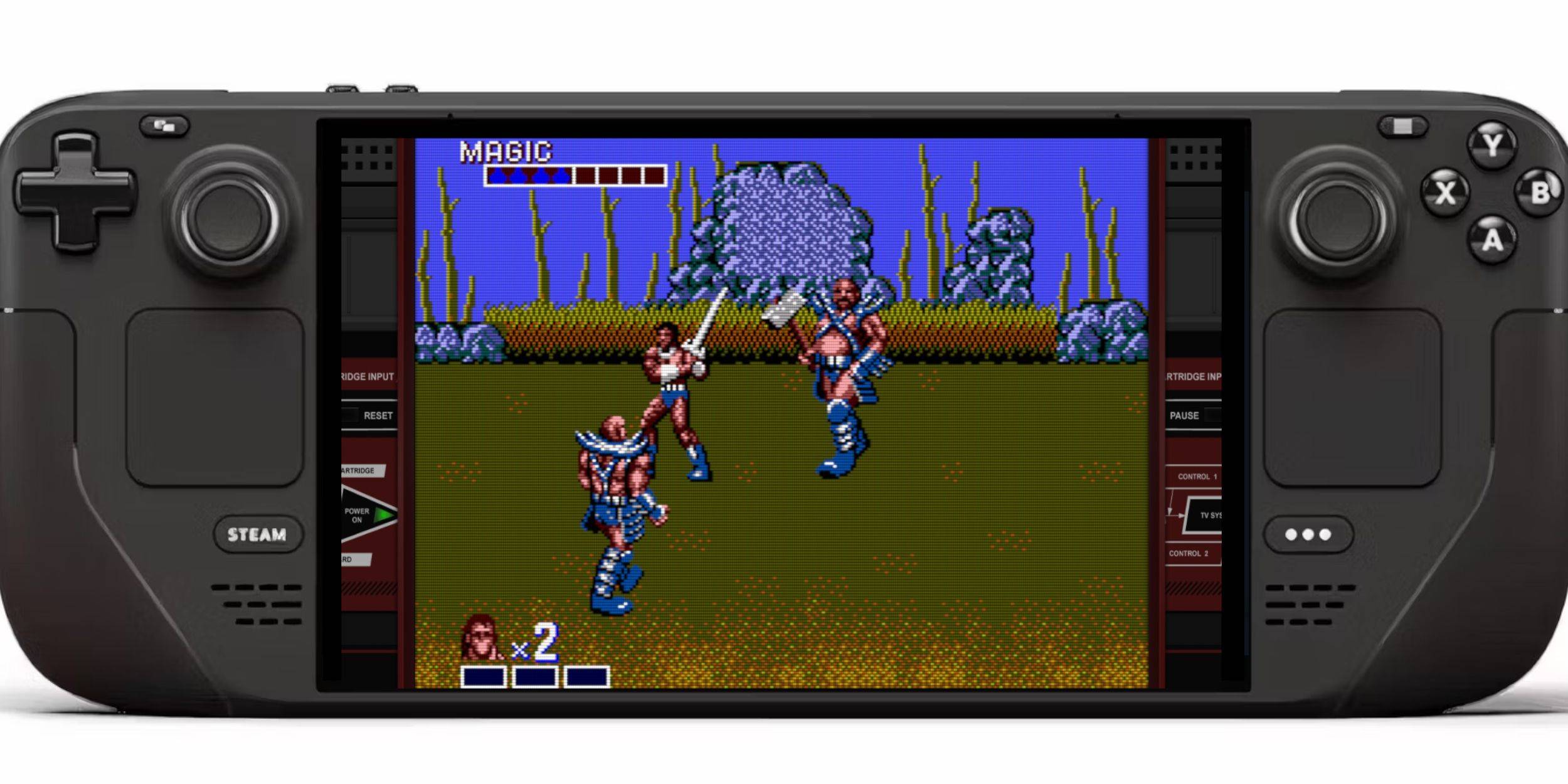
- Switch to Gaming Mode and press the Steam button beneath the left trackpad.
- Select Library from the side menu.
- Press R1 to view the Collections tabs.
- Choose the Sega Master System collection and launch your desired game.
Improve Performance
- While in-game, press the QAM button (under the right trackpad).
- Go to the Performance menu.
- Enable Use Game Profile.
- Set Frame Limit to 60 FPS.
- Turn on Half Rate Shading for smoother visuals.
Install Decky Loader For The Steam Deck











- 1 All the Buttons on Fisch Can Be Found Here Dec 24,2024
- 2 Roblox: Eat Pizza to Grow GIGACHAD Codes (January 2025) Feb 25,2025
- 3 Hogwarts Mystery Character Guide - All Romance Options Explained Apr 07,2025
- 4 Three Nights at the Blacksite Pressure Guide [April Fools] May 12,2025
- 5 Roblox Forsaken Characters Tier List 2025 Feb 14,2025
- 6 Top Pirate Crew Formations: Like a Dragon: Hawaii Mar 13,2025
- 7 Marvel Rivals' Controversial Hitbox System Draws Attention Feb 11,2025
- 8 Marvel Contest of Champions Champion Cards Guide Mar 14,2025

![LeMOMnade: Family Squeeze! – Version 1.1.1 [mtrellex]](https://img.3xbz.com/uploads/38/1719569762667e8d62c486e.jpg)



-
Mastering the Art of Digital Tools
A total of 10
-
Best News & Magazines Apps for Daily Reading
A total of 10
-
Hidden Gems: Unexpectedly Useful Other Apps
A total of 10