
R.E.P.O. Loading Screen Bug: Quick Fix Guide
The gaming world is filled with thrilling horror experiences, from classics like *Resident Evil* to *Silent Hill*. Yet, *R.E.P.O.* stands out with its unique co-op gameplay. However, some players are encountering a frustrating issue where the game gets stuck on the loading screen. Here’s how you can tackle the *R.E.P.O.* stuck on loading screen bug and get back to the scares.
How To Tackle R.E.P.O. Being Stuck on the Loading Screen
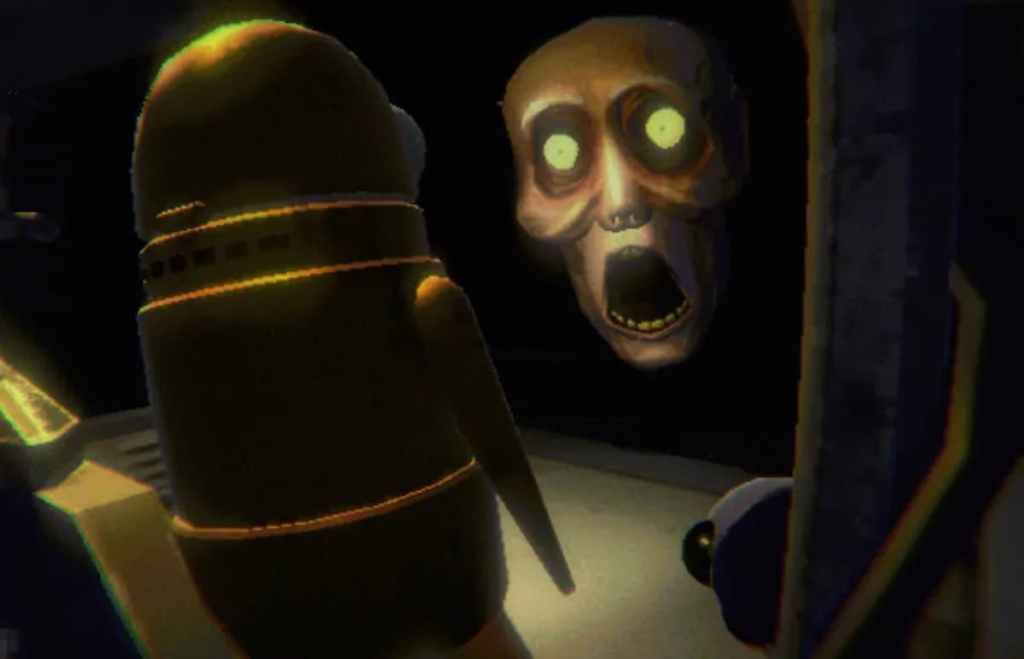 Image Source: semiwork
Players launching *R.E.P.O.* on PC might find themselves stuck at the loading screen, unable to dive into the game's eerie world. While the developer, semiwork, has yet to address this issue officially, there are several effective methods players can try to resolve the problem.
Close and Reopen the Game
A classic fix for many gaming issues, closing and reopening *R.E.P.O.* can often resolve the loading screen glitch. This simple action allows the game to refresh and potentially fix the issue on its own. It's a quick and easy first step that frequently works.
Reboot the PC
If relaunching the game doesn't solve the problem, consider rebooting your PC. A fresh start can clear out any temporary glitches that might be causing the loading screen issue. Plus, it gives you a brief moment to relax before jumping back into the horror.
Run R.E.P.O. as Administrator
Running *R.E.P.O.* with administrator privileges can enhance its performance by granting full system access. While it's not guaranteed to fix the loading screen bug, it's a worthwhile attempt. Here's how to do it:
- Right-click on the *R.E.P.O.* shortcut.
- Select Properties and go to the Compatibility tab.
- Check the box for "Run this program as an administrator."
Verify Game Files
Another solution is to verify the integrity of the game files through Steam. This process ensures that all necessary files are present and correctly installed, which can resolve the loading screen issue. Here's how to verify game files on Steam:
- Restart your PC and open Steam.
- Right-click on *R.E.P.O.* in your Steam Library or click the gear icon on its Library page.
- Select Properties from the drop-down menu.
- Go to the Installed Files tab and click "Verify integrity of game files."
It's worth noting that not all files may verify successfully, which Steam indicates is a normal part of the process. You can safely ignore any notifications about unverified files as you focus on resolving the loading screen bug.
By following these steps, you should be able to fix the *R.E.P.O.* stuck on loading screen issue and return to the thrilling horror experience the game offers. For more on *R.E.P.O.*, check out guides on the game's monsters and strategies to escape them.
*R.E.P.O.* is available now on PC.












- 1 All the Buttons on Fisch Can Be Found Here Dec 24,2024
- 2 Three Nights at the Blacksite Pressure Guide [April Fools] May 12,2025
- 3 Roblox: Eat Pizza to Grow GIGACHAD Codes (January 2025) Feb 25,2025
- 4 Roblox Forsaken Characters Tier List 2025 Feb 14,2025
- 5 Hogwarts Mystery Character Guide - All Romance Options Explained Apr 07,2025
- 6 Top Pirate Crew Formations: Like a Dragon: Hawaii Mar 13,2025
- 7 Marvel Rivals' Controversial Hitbox System Draws Attention Feb 11,2025
- 8 Marvel Contest of Champions Champion Cards Guide Mar 14,2025

![LeMOMnade: Family Squeeze! – Version 1.1.1 [mtrellex]](https://img.3xbz.com/uploads/38/1719569762667e8d62c486e.jpg)



-
Mastering the Art of Digital Tools
A total of 10
-
Best News & Magazines Apps for Daily Reading
A total of 10
-
Hidden Gems: Unexpectedly Useful Other Apps
A total of 10