Black Ops 6 Visuals: Fixing Grainy and Blurry Graphics
For a top-tier AAA title like Call of Duty, players expect crisp, high-quality visuals. Yet, Black Ops 6 can sometimes look grainy or blurry, disrupting immersion and target visibility. If you're experiencing these issues in Call of Duty: Black Ops 6, here’s how to enhance the visuals.
Table of Contents
Why Are Black Ops 6 Graphics Grainy and Blurry?How to Disable Blur in Call of Duty: Black Ops 6
How to Enhance Clarity and Reduce Grain in Black Ops 6
How to Boost Image Details and Textures in Black Ops 6
Why Are Black Ops 6 Graphics Grainy and Blurry?
If Black Ops 6 visuals appear grainy or blurry despite optimizing your hardware settings (such as ensuring your console outputs at your monitor’s maximum resolution), specific in-game settings may be the cause. Game updates can sometimes reset options to default, introducing bugs. The key settings impacting image quality are located in the graphics menu under the Display, Quality, and View tabs. The Quality tab holds the most critical adjustments to resolve visual issues in Black Ops 6.
How to Disable Blur in Call of Duty: Black Ops 6
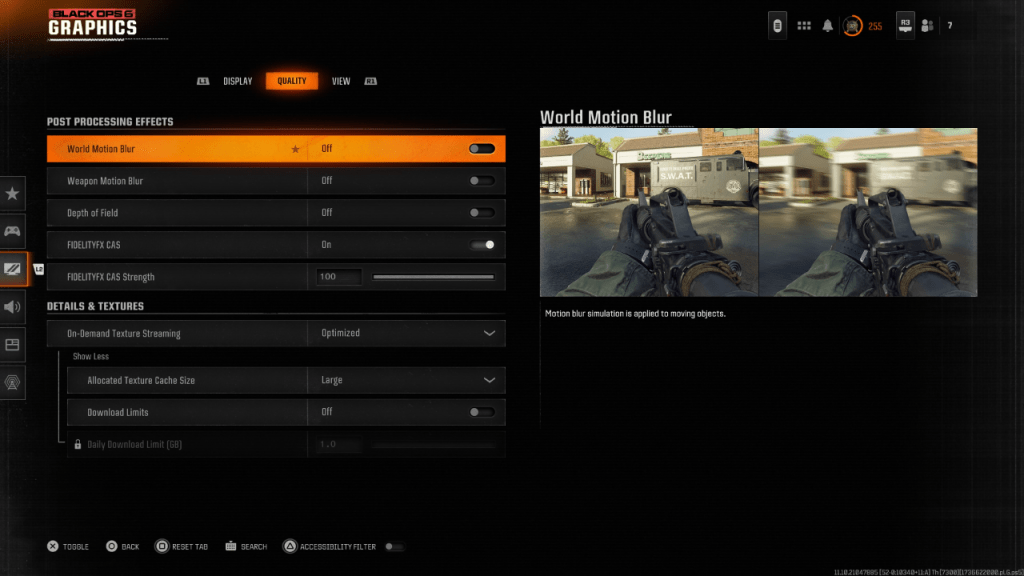
Many games, including Call of Duty: Black Ops 6, use Motion Blur and Depth of Field for a cinematic effect, mimicking camera lens behavior. While these settings enhance immersion in story-driven titles, they can blur visuals in fast-paced, competitive games, making it harder to spot targets. Disabling these options can significantly improve clarity in Black Ops 6.
Here’s how to turn off Motion Blur and Depth of Field:
- Navigate to Graphics Settings, select the Quality tab, and locate Post Processing Effects.
- Set World Motion Blur to Off.
- Set Weapon Motion Blur to Off.
- Set Depth of Field to Off.
How to Enhance Clarity and Reduce Grain in Black Ops 6
If visuals remain suboptimal after adjusting blur settings, your gamma and brightness may need recalibration. In the Black Ops 6 Graphics Settings, go to the Display tab, select Gamma/Brightness, and adjust the slider until the Call of Duty logo is faintly visible in the center panel. A setting of 50 often works well, but your display may require fine-tuning for optimal results.
Next, in the Quality tab of Black Ops 6 Graphics Settings, ensure FIDELITYFX CAS is enabled. This activates AMD FidelityFX Contrast Adaptive Sharpening, which sharpens rendered scenes. The default FIDELITYFX CAS Strength is 50/100, but increasing it to 100 can yield even crisper visuals. If image quality still falls short after these tweaks, On-Demand Texture Streaming may be impacting performance.
How to Boost Image Details and Textures in Black Ops 6
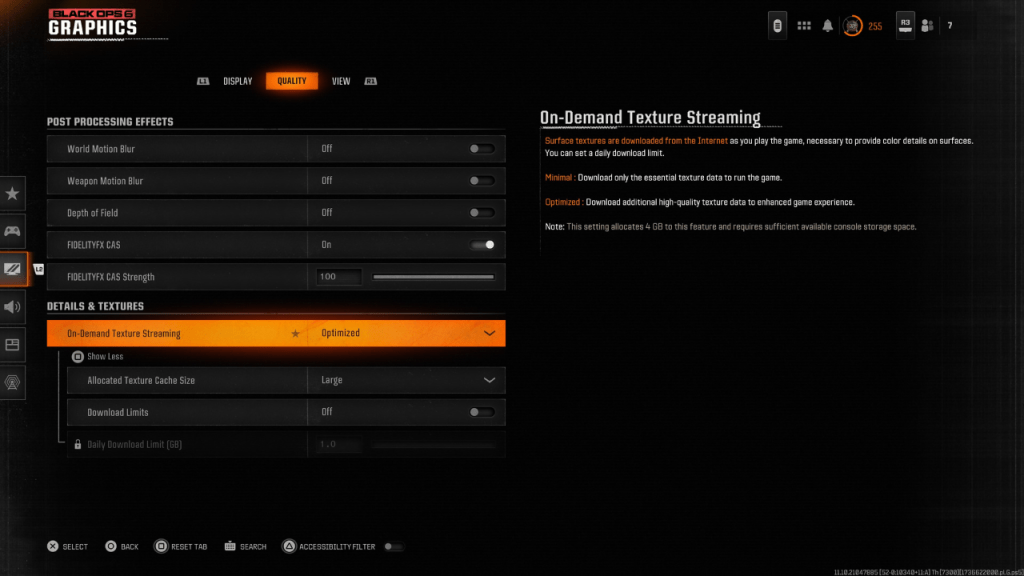
To manage large file sizes, Black Ops 6 employs On-Demand Texture Streaming, which downloads textures from the internet during gameplay instead of storing them locally. While this saves storage space on your console or PC, it can degrade image quality if not optimized.
For optimal visuals, go to the Details & Textures settings in the Quality tab of Black Ops 6 Graphics Settings. Set On-Demand Texture Streaming to Optimized to download high-quality texture data and enhance graphics.
Press the “Show More” input on your screen to access additional options. Set the Allocated Texture Cache Size to Large to store more downloaded textures, though this uses more system storage. If your internet provider doesn’t impose data caps, disable Download Limits to allow Black Ops 6 to download high-resolution textures freely, ensuring peak graphical performance.
These steps will resolve grainy and blurry visuals in Call of Duty: Black Ops 6.








- 1 All the Buttons on Fisch Can Be Found Here Dec 24,2024
- 2 Hogwarts Mystery Character Guide - All Romance Options Explained Apr 07,2025
- 3 Roblox: Eat Pizza to Grow GIGACHAD Codes (January 2025) Feb 25,2025
- 4 Three Nights at the Blacksite Pressure Guide [April Fools] May 12,2025
- 5 Roblox Forsaken Characters Tier List 2025 Feb 14,2025
- 6 Top Pirate Crew Formations: Like a Dragon: Hawaii Mar 13,2025
- 7 Marvel Rivals' Controversial Hitbox System Draws Attention Feb 11,2025
- 8 Marvel Contest of Champions Champion Cards Guide Mar 14,2025

![LeMOMnade: Family Squeeze! – Version 1.1.1 [mtrellex]](https://img.3xbz.com/uploads/38/1719569762667e8d62c486e.jpg)


-
Mastering the Art of Digital Tools
A total of 10
-
Best News & Magazines Apps for Daily Reading
A total of 10
-
Hidden Gems: Unexpectedly Useful Other Apps
A total of 10